Staff and permissions
The venue's main login (the "client" login) can do everything. Everyone else gets their own staff account, with only the permissions they need.
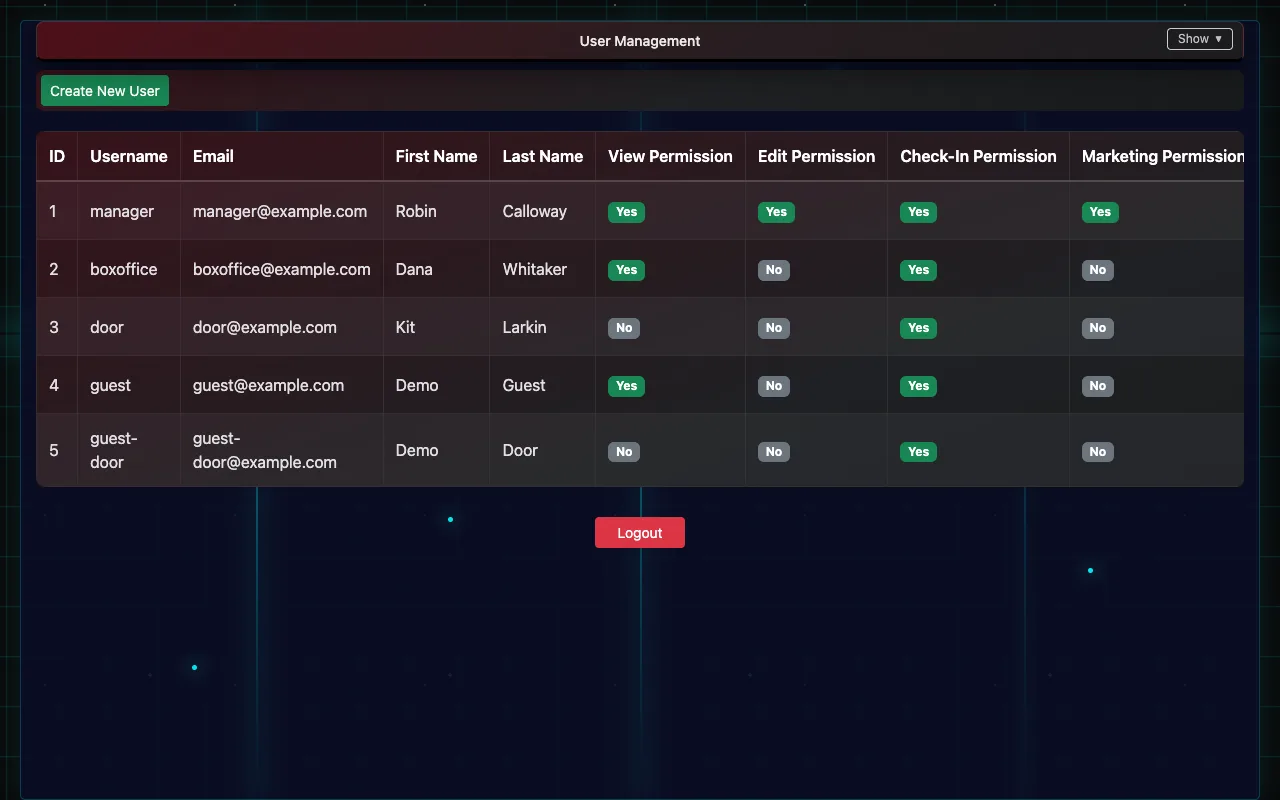
Add a staff account
- Log in with the venue's main login and open User Management.
- Choose Create New User.
- Enter a Username, Password and Email (for password resets), and their name if you like.
- Tick their Permissions. New accounts start with Check-In only.
- Optionally add Data Filters (below), then Save User.
They log in with the venue's Client ID, their username and their password.
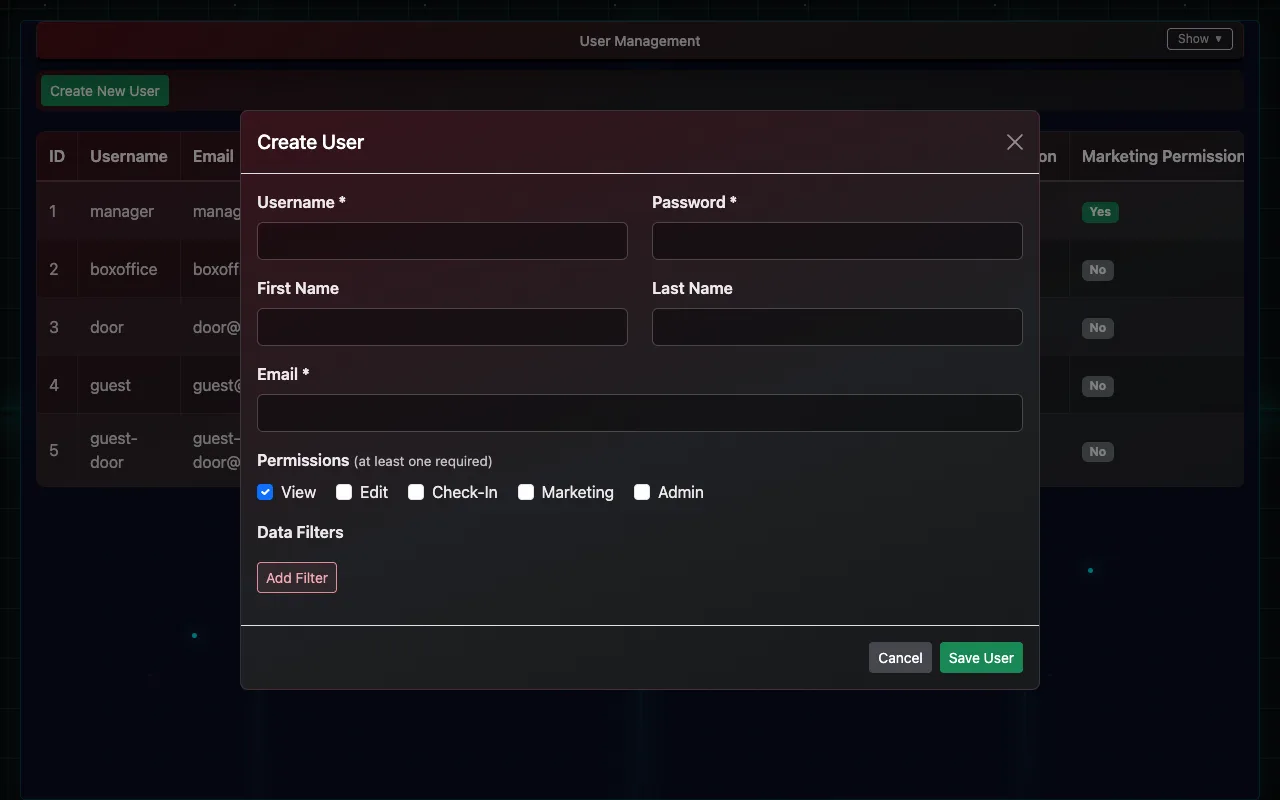
What each permission allows
| Permission | Allows |
|---|---|
| Check-In | Ticket Scanner, Today's Dashboard, Manual Checkin / List Tickets |
| View | The above, plus List Orders and Event Report |
| Edit | The above, plus Movie Info Lookup, Event Info Entry and Box Office Reports |
| Marketing | Marketing Schedule and Email List |
| Admin | Insights |
Client Settings, User Management, Skeleton Keys, API Keys and Privacy Requests are only available to the main login.
Limit someone to certain events
Data Filters limit a staff account to matching tickets and orders: by event name (exact, or containing some words), by date, or by event type (Movie or Live). Use them for a promoter who should only see their own show's sales, or door staff for one room. Add several filters to allow any of them.
Changing or removing access
Edit or delete the account in User Management. Changes take effect the next time that person logs in, and a login lasts up to 24 hours.