Reports and Insights
What sold, what checked in, and the nightly box-office reports cinemas send to distributors.
Event Report
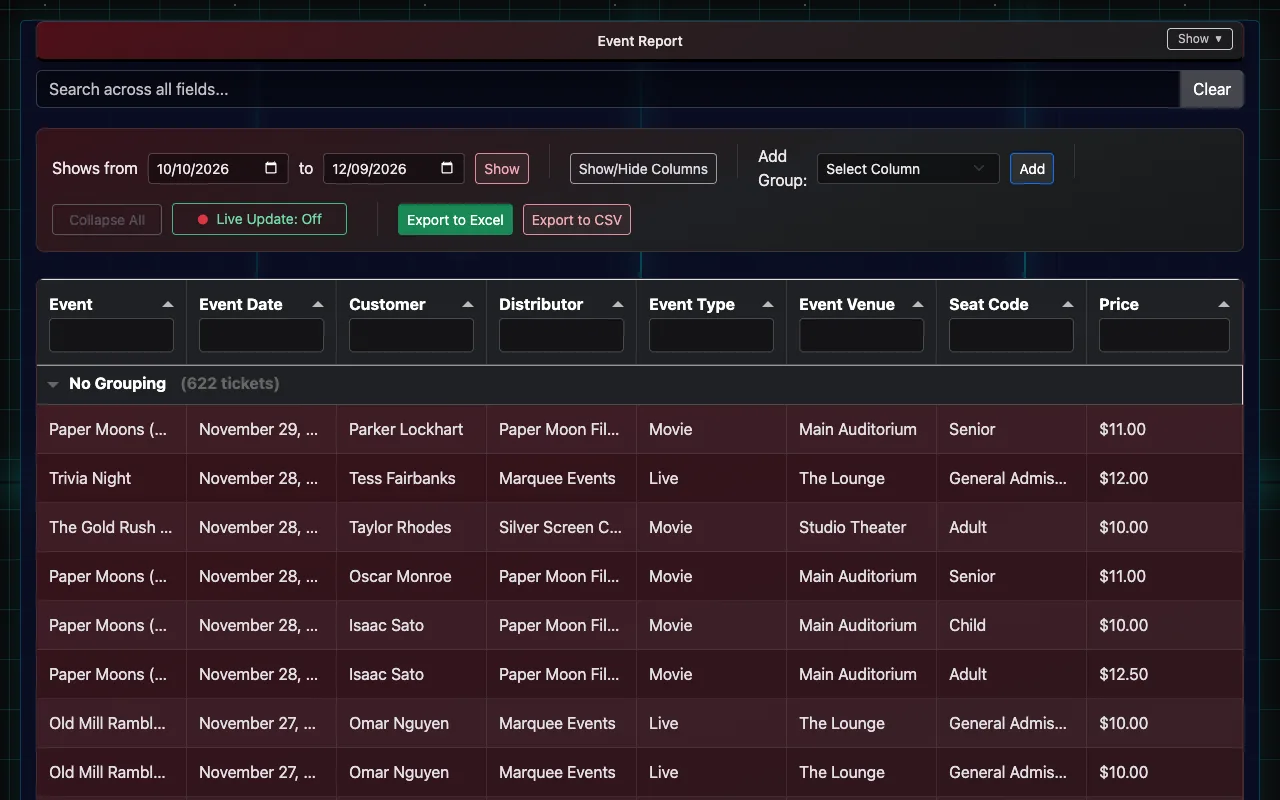
The Event Report lists every ticket with its event, showtime, ticket type, price and check-in status. You need view or edit permission.
- Open Event Report. It covers shows from 30 days ago to 30 days ahead; change Shows from and to and choose Show for other dates. A very long range (thousands of tickets) asks you to choose a shorter one.
- Group the list: pick a column under Add Group (Event, Event Date, Distributor, Event Type, Event Venue, Seat Code, Check-in Status or Customer) and choose Add. Add more groups to nest them, for example Event, then Event Date.
- Each group shows its ticket count and totals. Collapse All folds them up.
- Live Update keeps the report refreshing on its own, handy during a show.
- Export to Excel or Export to CSV downloads what you see.
Insights
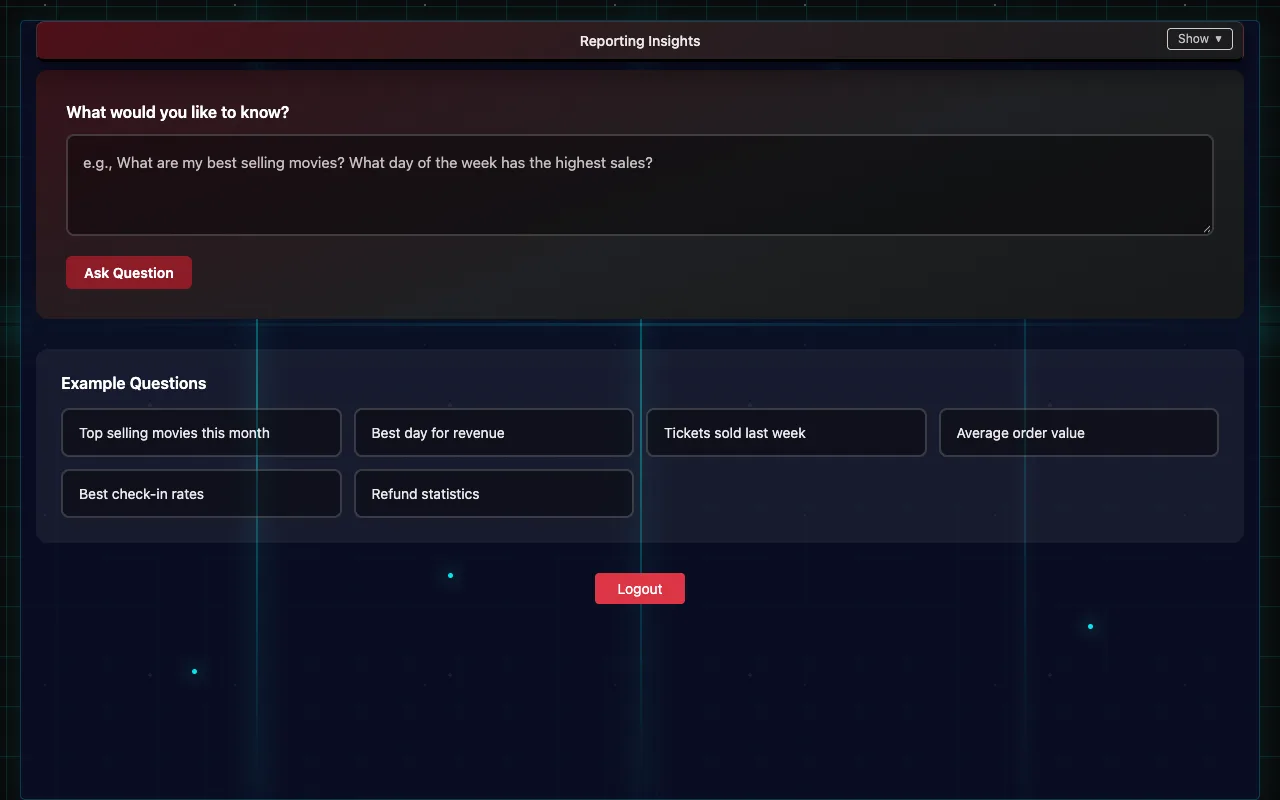
Insights answers questions about your sales in plain English, such as "how many tickets did we sell last weekend?" or "which films had the best check-in rate?". It needs admin permission and the venue's own Anthropic API key in Client Settings → API Configuration.
- Open Insights and type your question, or choose one of the Example Questions.
- Choose Ask Question. The answer comes from your own data only.
- Show SQL Query shows exactly how it was worked out.
Insights only reads your sales data; it can't change anything.
Box-office reports to distributors (cinemas)
Cinemas that report to film-industry services (for example comScore/Rentrak) can have the daily box-office files sent automatically every night.
- In Client Settings → Theater Settings, enter your Theater ID, Theater Name, EBOR Theatre No., Sales Tax Rate (%) (the part of the ticket price that's tax) and Screen Numbers (which room is which screen).
- Under FTP Settings, turn on Enable FTP uploads and enter each destination your reporting services gave you.
If a delivery fails, the venue's contact email gets an alert saying what failed.
Box Office Reports (download the files yourself)
Some distributors don't get the nightly files automatically and ask the venue to send them. Box Office Reports downloads them for any date or range. You need edit permission (staff limited to some events can't use it, since the files cover every show).
- Open Box Office Reports.
- Pick the dates in From and To, or choose Yesterday, Last weekend, Last 7 days or Last month. Up to 62 days at a time.
- Choose Download. You get one .zip file holding, for each day, the RTS spreadsheet (
RTS_<Theater ID>_<date>0000.csv) and the FRG file (FRG_<EBOR Theatre No.>_<date>0000.xml), named and laid out exactly like the nightly files. A day with no shows still gets its two files, marked as having no data. - The page lists each day's showtimes, tickets and gross. Download again saves the same .zip again.
The files are built from your records as they are now, so a ticket refunded after its show night is left out, while the file sent that night still counted it. Downloading never sends anything to the reporting services. There's no FRG file without an EBOR Theatre No. in Client Settings.