At the door
Checking people in: the scanner, looking tickets up by hand, today's numbers, comps and printing.
Scan tickets
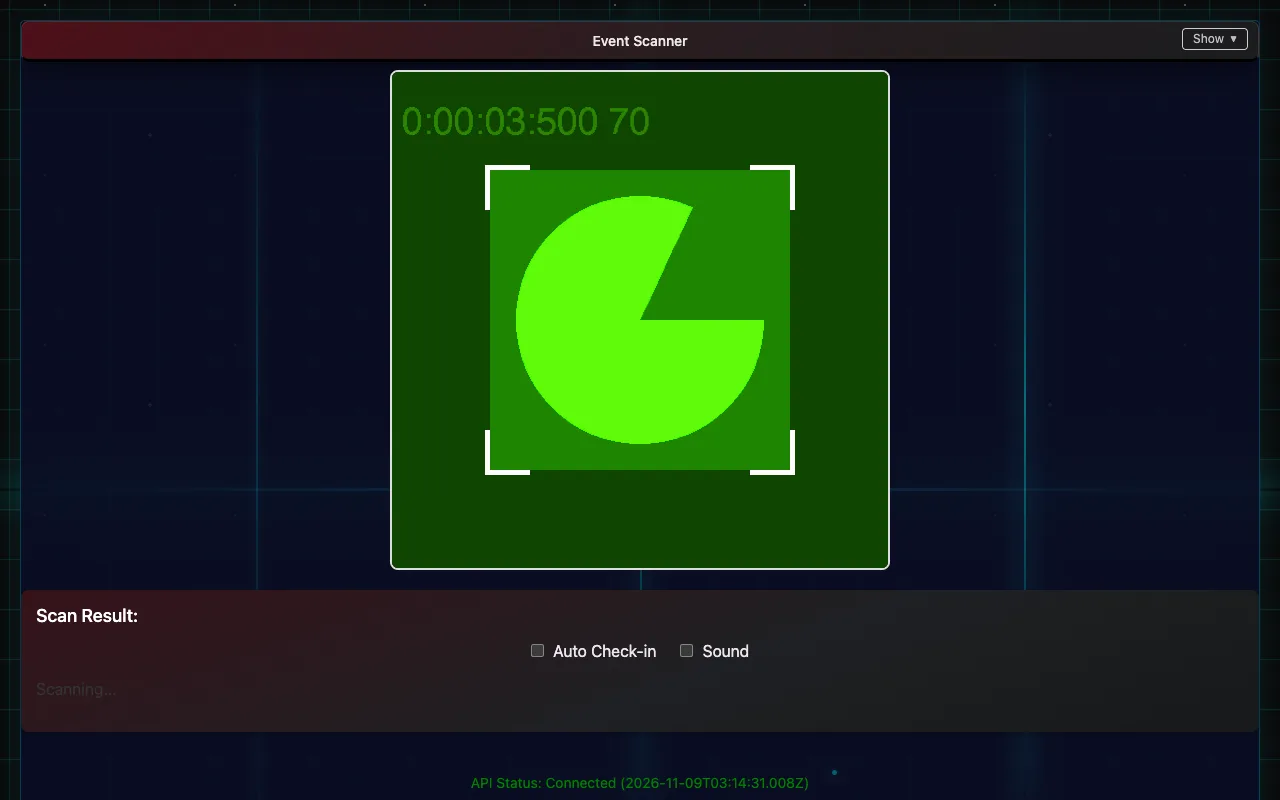
- On any phone, tablet or laptop with a camera, log in and open Ticket Scanner. There's no app to install; phones use the rear camera.
- Allow camera access when the browser asks.
- Point the camera at the ticket's QR code, on the buyer's phone screen or a printout. The Scan Result shows the ticket and whether it's valid.
- With Auto Check-in on, a valid ticket is checked in the moment it's scanned. With it off, confirm each check-in yourself. Sound plays a tone on each scan.
- Scanning a ticket twice shows "already checked in", not an error.
- Refunded, cancelled and transferred tickets are refused.
- A USB or Bluetooth handheld scanner also works: use the search box on Manual Checkin / List Tickets, since most handheld scanners type like a keyboard.
Check in by hand
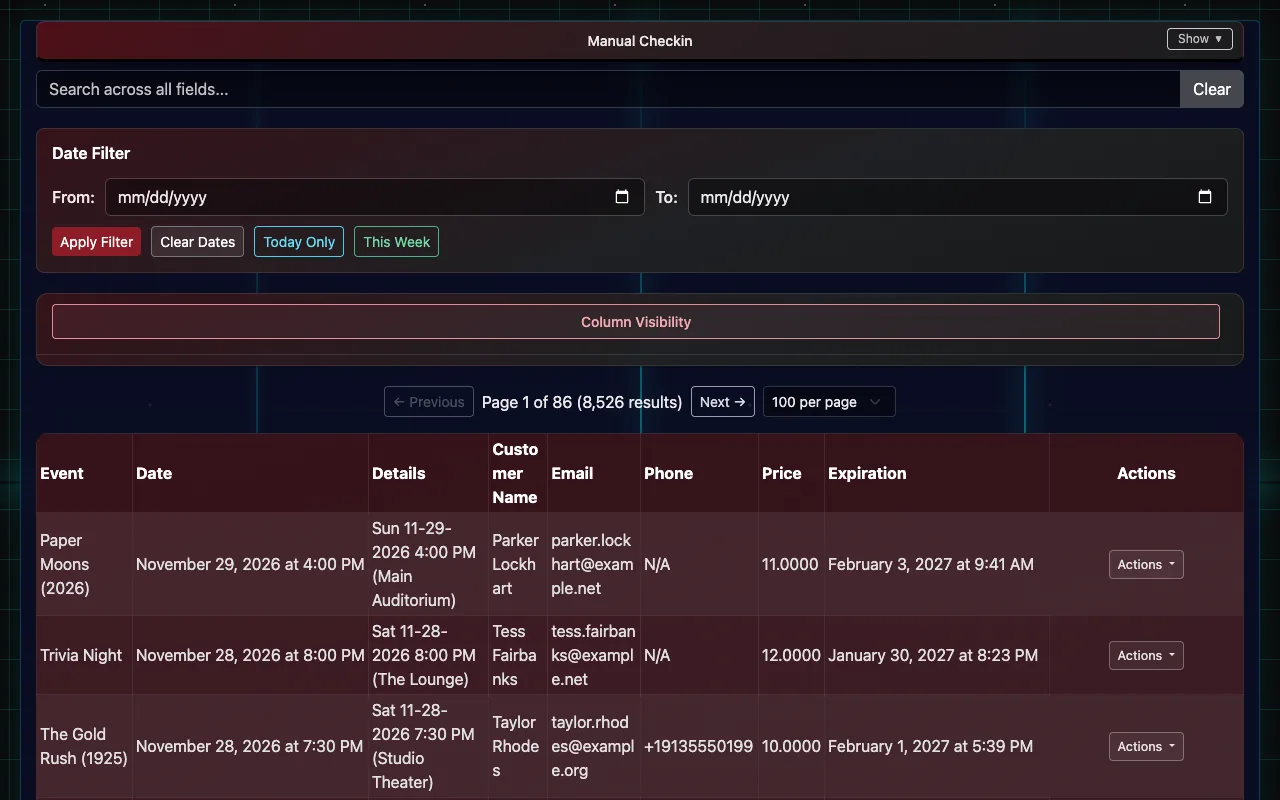
When a code won't scan, or the buyer only has their name:
- Open Manual Checkin / List Tickets.
- Search by name, email or code, or use Today Only and the date filter to narrow the list. Long lists come a page at a time: use Previous and Next, or choose how many to show per page.
- On the ticket's row, open Actions and choose Check In, then Confirm Check-in (or Confirm Check-in & Print to print a stub as well).
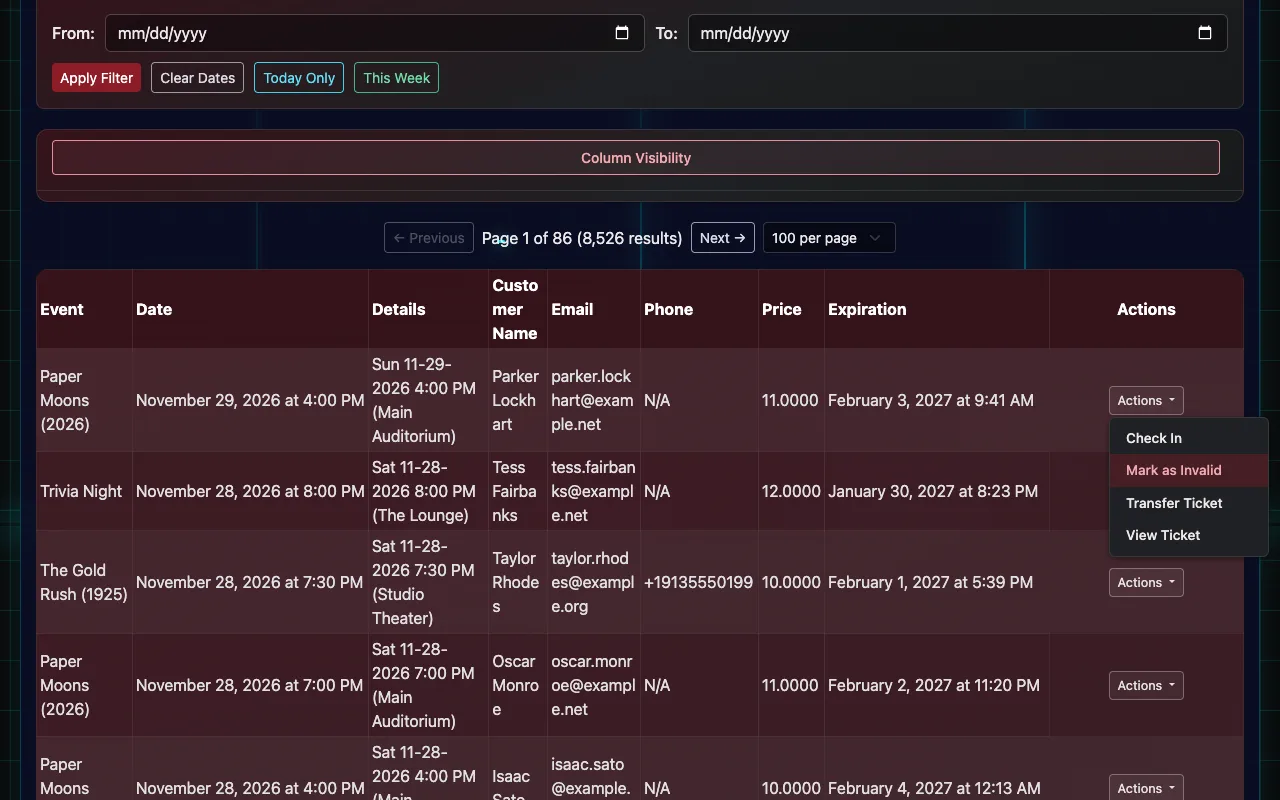
The same menu can Check Out a ticket checked in by mistake, Transfer Ticket to someone else, View Ticket, Print Ticket, or Mark as Invalid. Marking a ticket invalid stops it working at the door but doesn't return any money: to refund, use Refund Order on the Orders page (Orders, refunds and resends). Column Visibility chooses which columns show.
Today's Dashboard
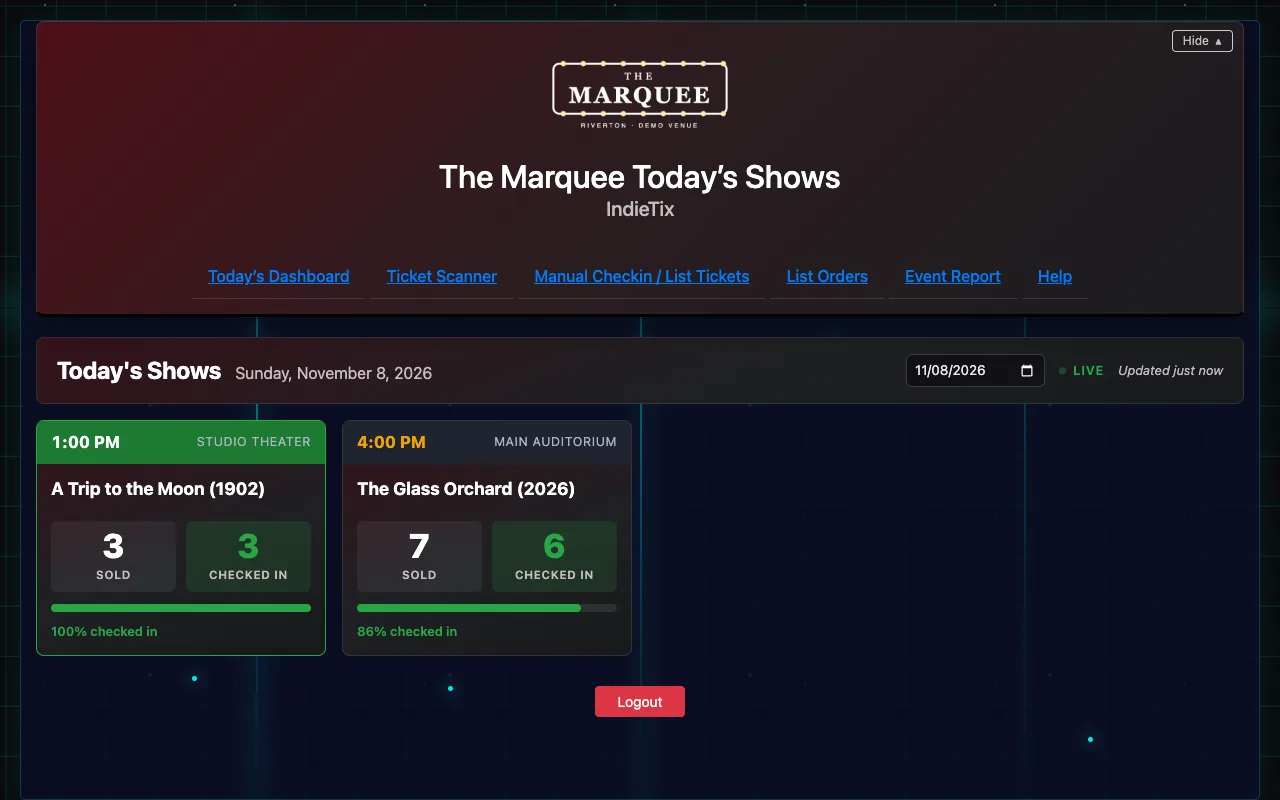
Today's Dashboard shows each of today's shows with tickets sold and checked in so far, for whoever's running the door. It refreshes on its own. Choose a date to look at another day; Today comes back to today.
Extra staff on a busy night
Create a staff account in User Management (new accounts can only check people in) and log in on another phone (Staff and permissions).
Skeleton keys (comps and re-entry)
Reusable QR codes for comps, re-entry or staff, set up in Client Settings → Skeleton Keys. Each can have limits (uses per day, total uses, an expiry date), can be revoked, and every use is logged.
Printing paper ticket stubs (optional)
- Uses a Brother QL-series network label printer at the box office and a small print agent running on a computer on the same network.
- Then use Print Ticket on a ticket, Print Tickets on an order (prints every valid ticket on it), or Confirm Check-in & Print at the door.
- Prints failing or "connection timed out"? Turn the printer off and on, make sure it's on the network, and check only one copy of the print agent is running. Setting printing up the first time: a person from IndieTix helps with that.